Stop copy-pasting CPE test data. Let the tool measure, record and report.
It reads signal parameters, runs the speed tests, records every angle and compares your test and reference units side by side — then builds an Excel / PDF report in one click. The slowest, most error-prone parts of field testing, handled for you.
For Windows 10 / 11 and macOS 11+ · Activate with a license code or buy a permanent license in the app · Works with CPEs from mainstream brands, more being added · Read the manual
 CPE Auto Test Tool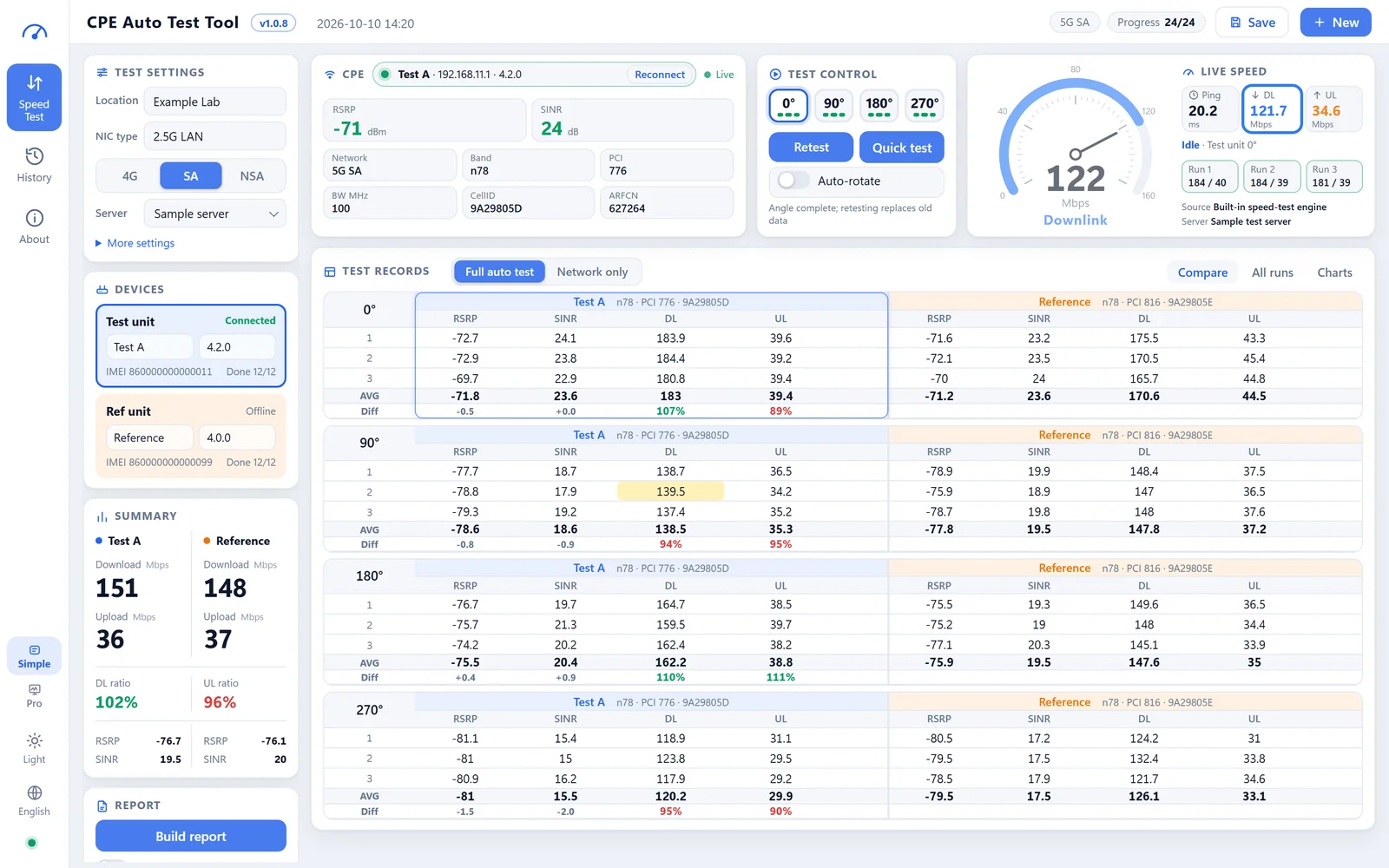
The traps you've hit — each one handled
Same place, same angle, same test server — only then does a comparison mean something. The tool pins those details down for you.
The pain
Signal readings copied by hand
Staring at the device page, copying RSRP, SINR, Band and PCI one by one — one wrong digit and you retest.
Connect and it reads — signal and cell info land on the same row as the speed result.
The pain
Conditions never match
Swap a unit and the test server, adapter and timing all change — the numbers stop being comparable.
The lowest-latency server is picked and pinned, so both units are tested the same way.
The pain
Missed or mixed-up angles
Four angles, several runs each — miss one or log it under the wrong angle and the work is wasted.
Auto-rotate with a countdown and voice alerts; data at the wrong angle swaps with one drag.
The pain
Averages and ratios by hand
AVG, differences and ratios computed manually, then double-checked.
AVG and ratios per angle, automatically — ≥100% green, <100% red.
The pain
Reports rebuilt every time
Spreadsheet, charts and PDF redone after each session — merging several sessions is worse.
One click for Excel + PDF; tick several history records to merge them into one export.
The pain
Data lost in a click
Close the wrong window or click the wrong button and tens of minutes of data vanish.
Every run is saved automatically; Ctrl+Z undoes anything; save points restore any moment.
From plugging in to handing over the report
Every item is a real feature of the software.
Side-by-side, the gap is obvious
Test and reference units sit left and right; AVG and ratio per angle show which one wins and by how much.
Automatic speed tests
Live download, upload and latency; the lowest-latency server is picked and pinned; plus a quick-test mode.
Live signal readout
RSRP, SINR, Band, PCI and cell ID update live; 4G, SA and NSA are handled separately.
Record by angle
0° / 90° / 180° / 270°, 3 runs each (1–10 adjustable), with an auto-rotate countdown.
Several units at once
Up to 4 test units + 1 reference; one report sheet per unit plus a summary.
One-click reports
Excel with charts + a one-page PDF, optionally with a detailed report (Band, PCI, server, ping).
History & undo
Autosave; reopen to continue, restore save points, merge exports; Ctrl+Z / Ctrl+Y undo and redo.
Simple & Pro modes
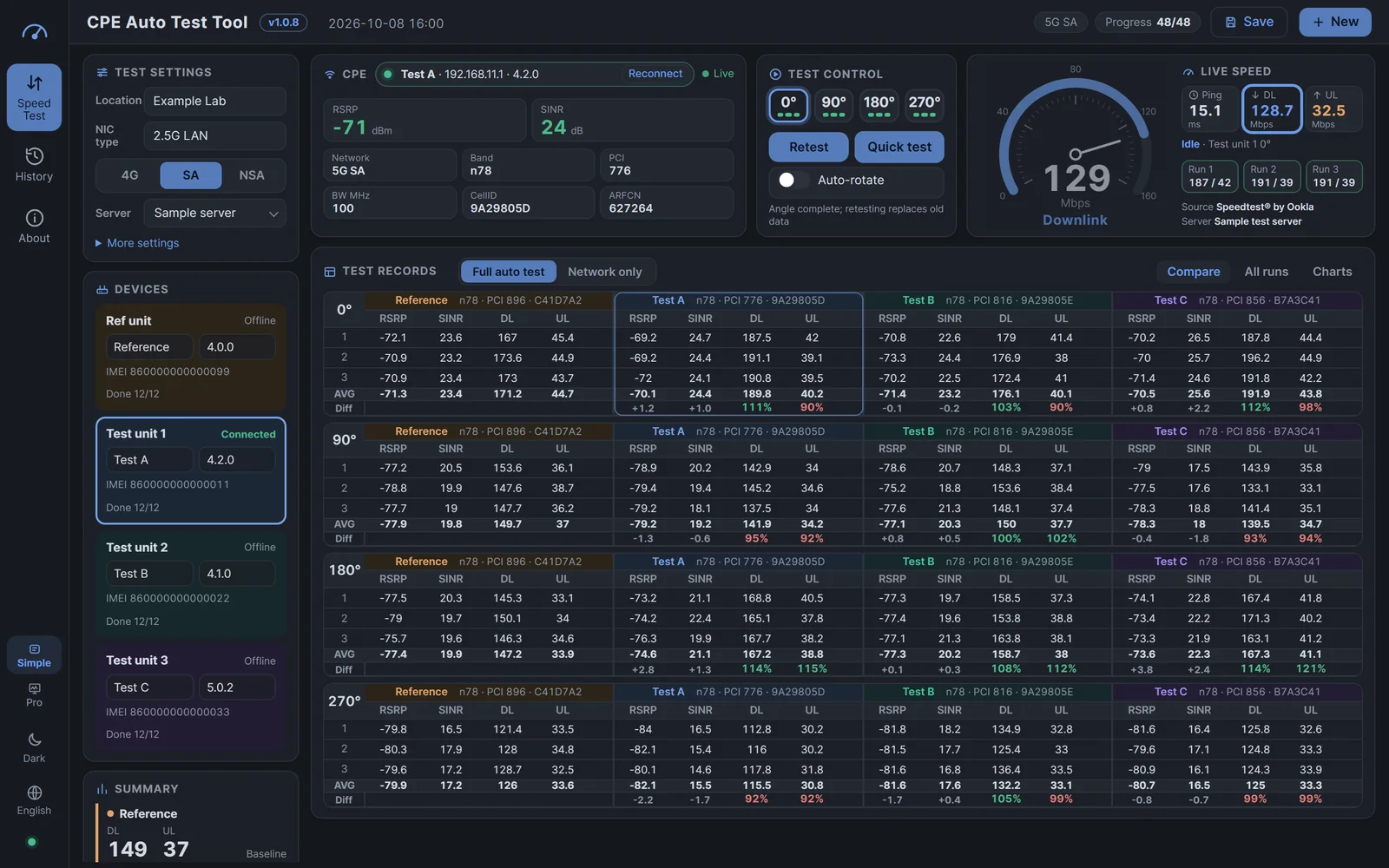
Simple keeps focus on results; Pro adds Band, PCI, CellID, server, ping and a status bar.
Network-only mode
Measuring speed elsewhere? One click stores the cell info, you type the speeds, reports still work.
See what it actually looks like
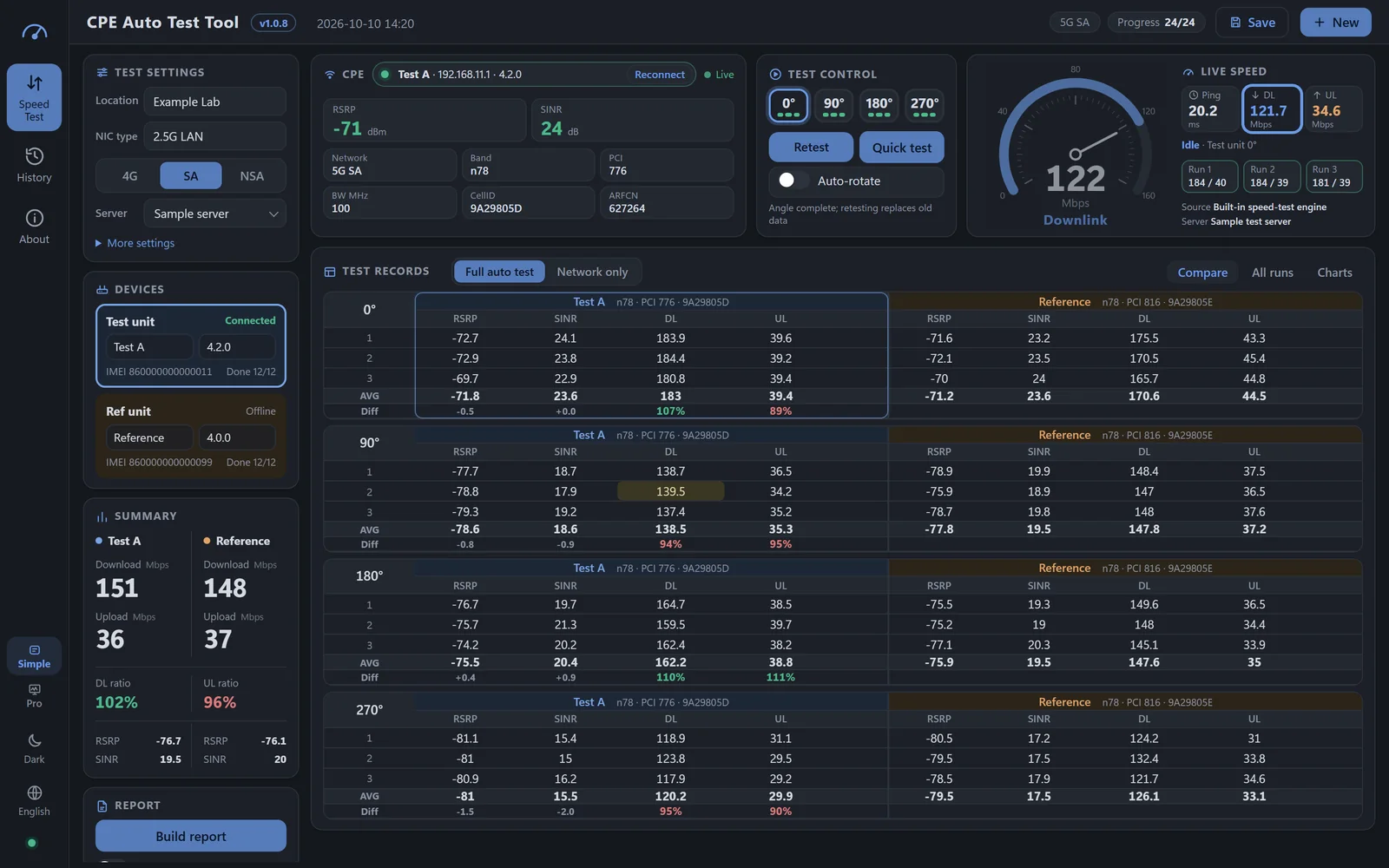
All screenshots are of the real software. The data shown is sample data, not real test results.
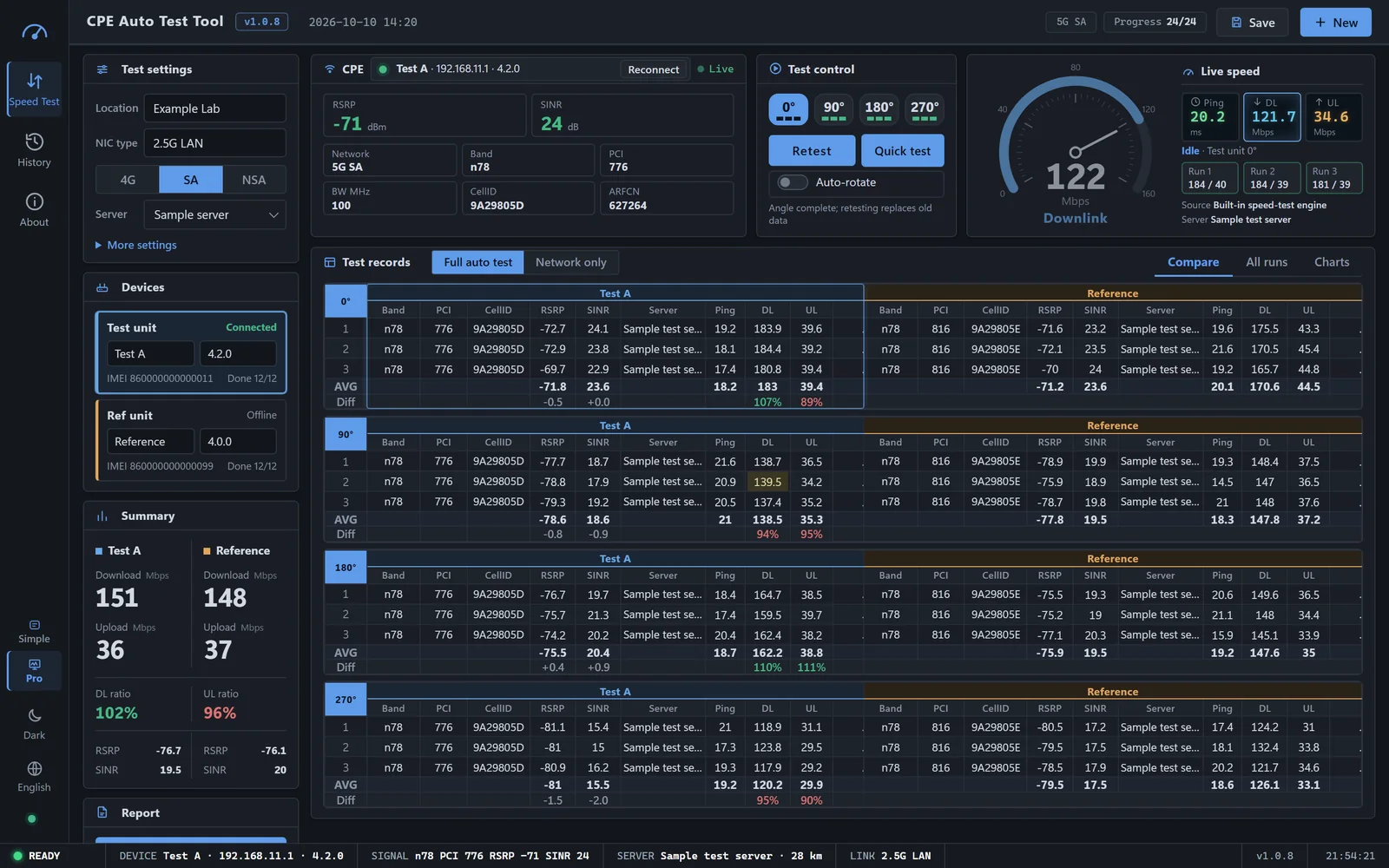
Comparison table: one block per angle, test unit on the left, reference on the right, with AVG and ratio underneath. Yellow cells were edited by hand.
CPE Auto Test Tool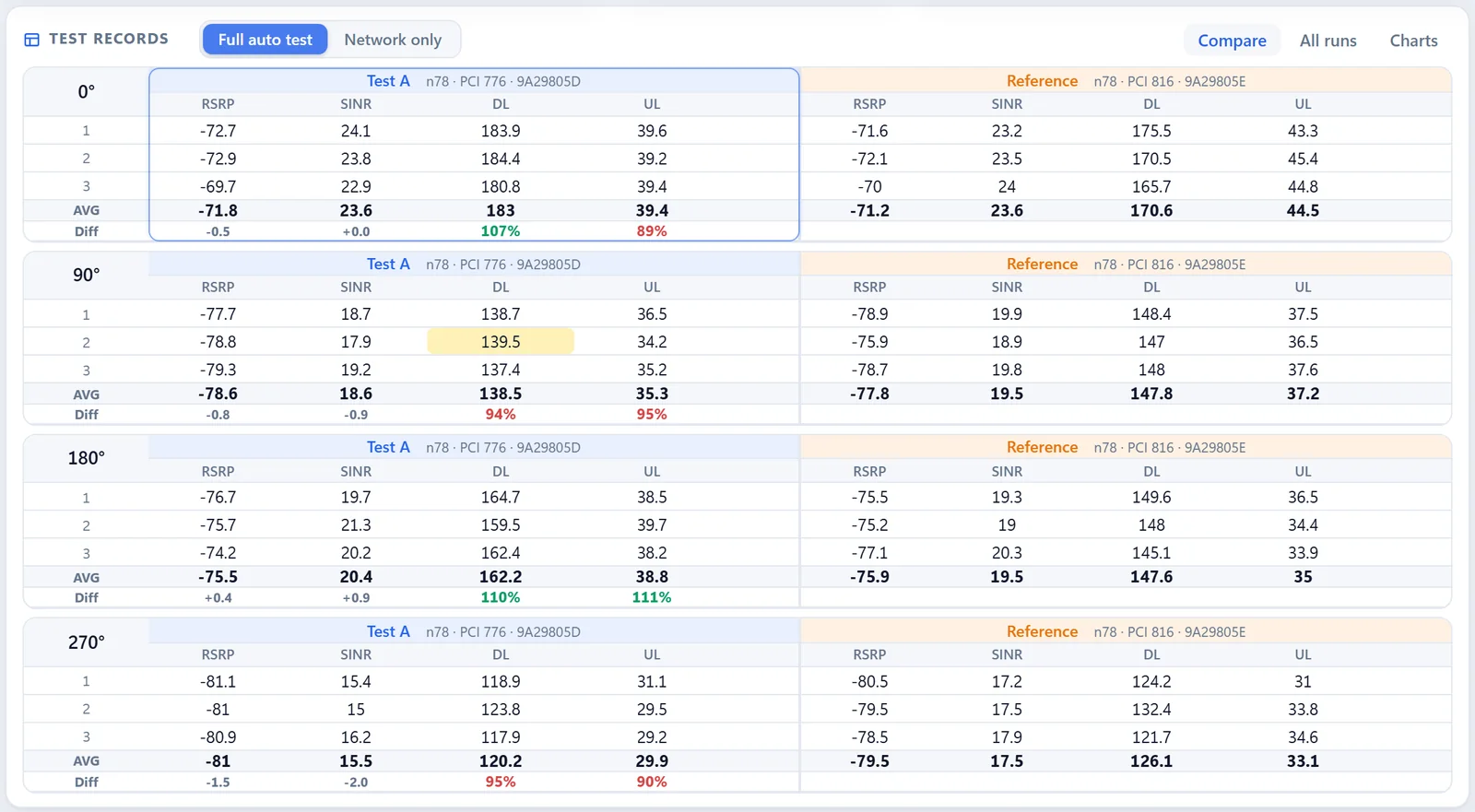
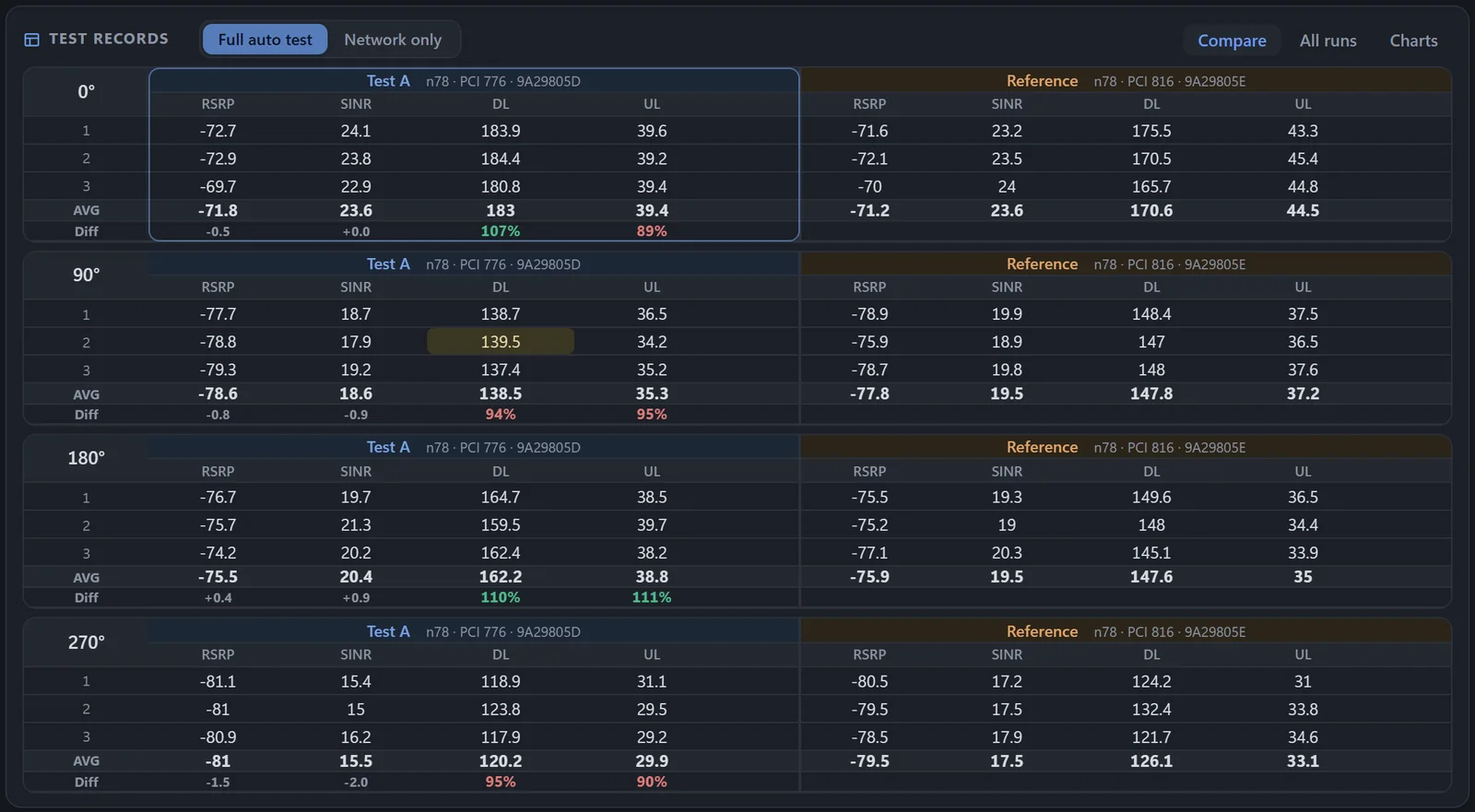
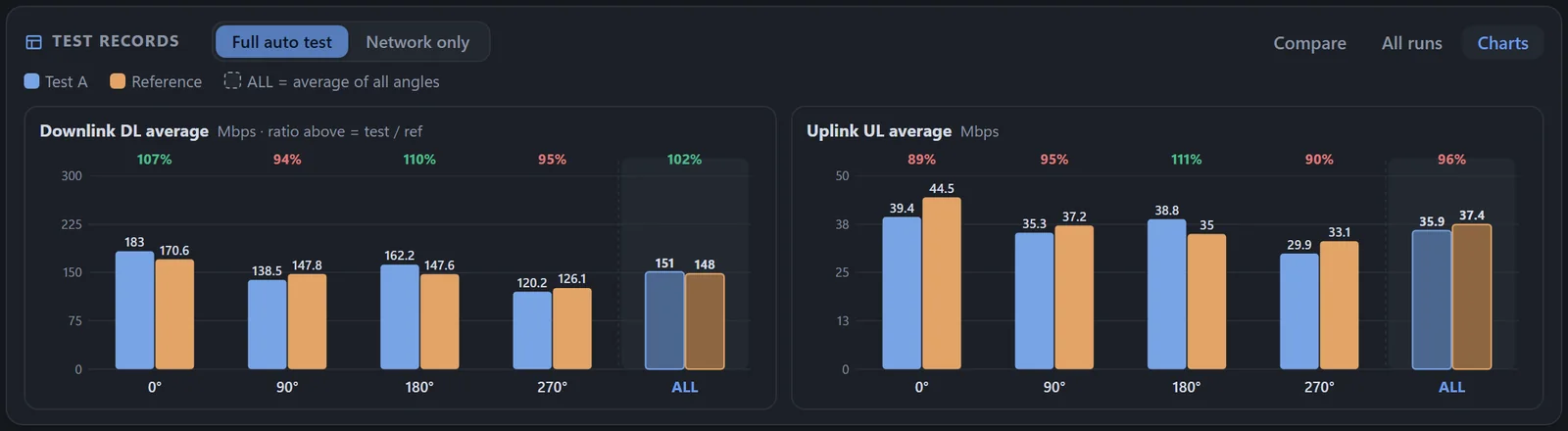
Chart view: average download / upload per angle, with the test-to-reference ratio above each group.
CPE Auto Test Tool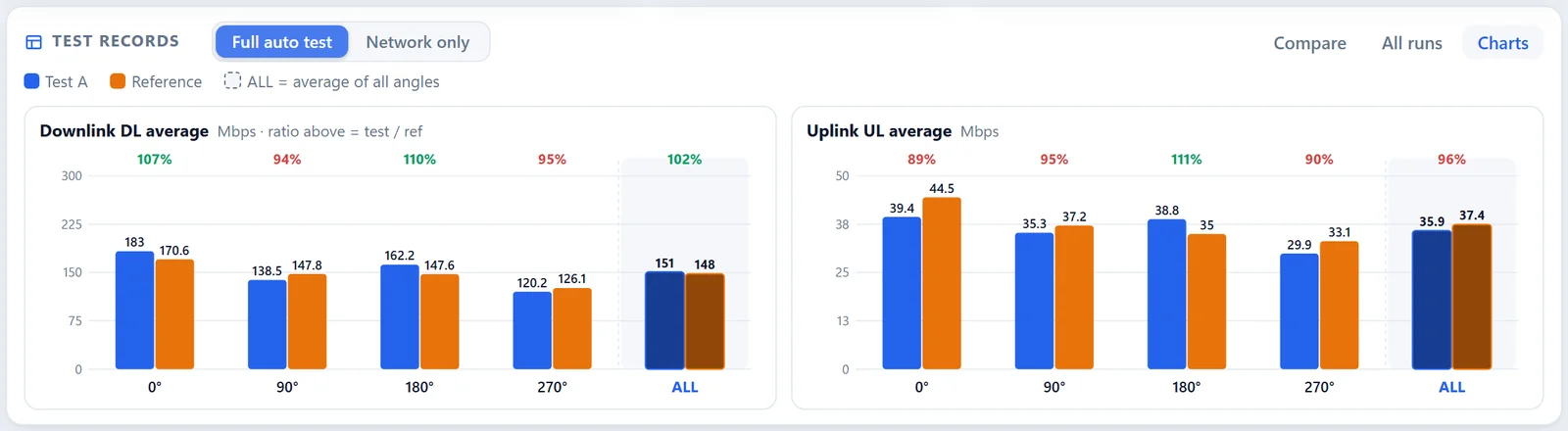
Pro mode: expands Band, PCI, CellID, test server and ping, with a status bar at the bottom — for engineers who want the details.
CPE Auto Test Tool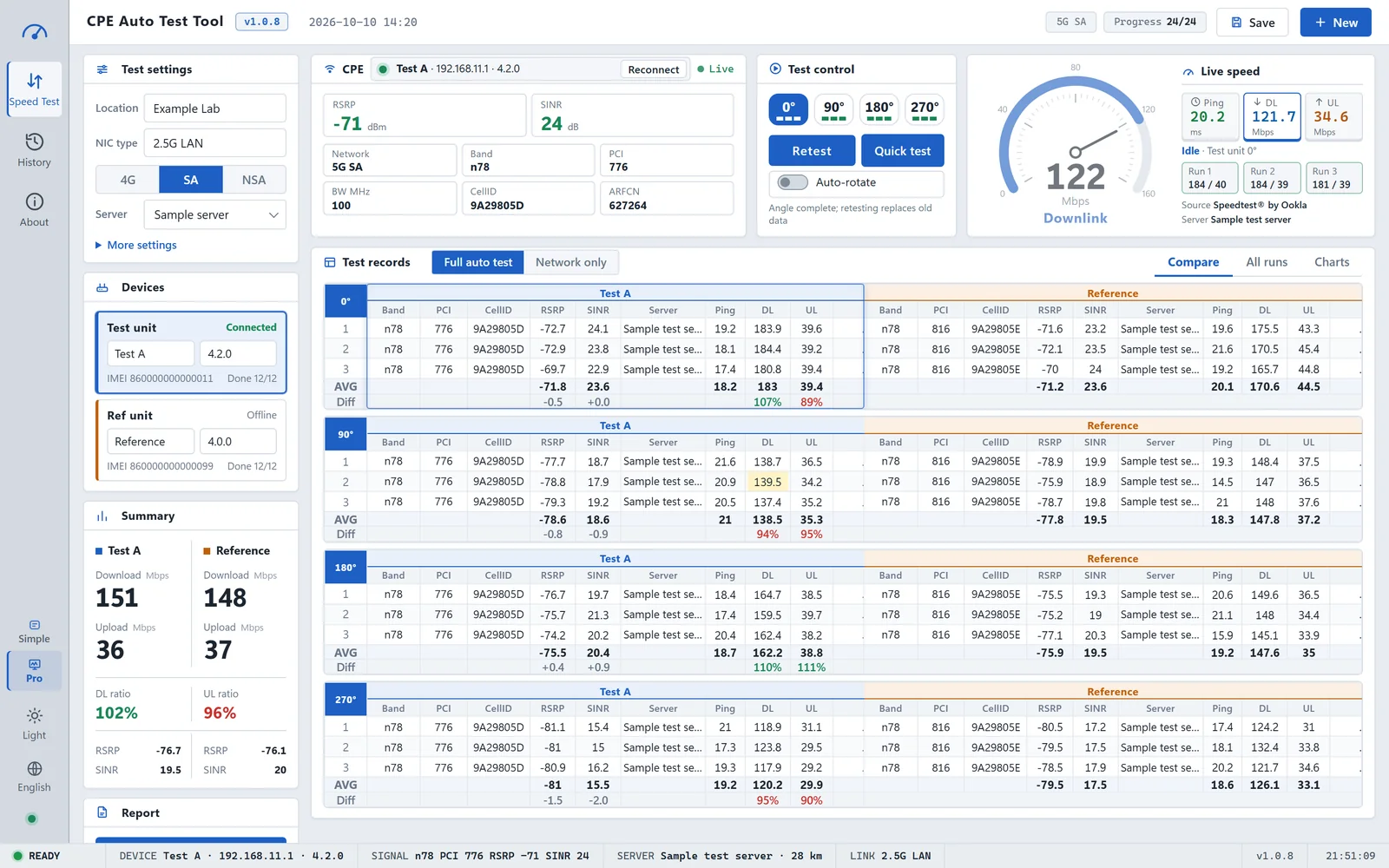
Multiple units: one reference unit and up to four test units compared on one screen.
CPE Auto Test Tool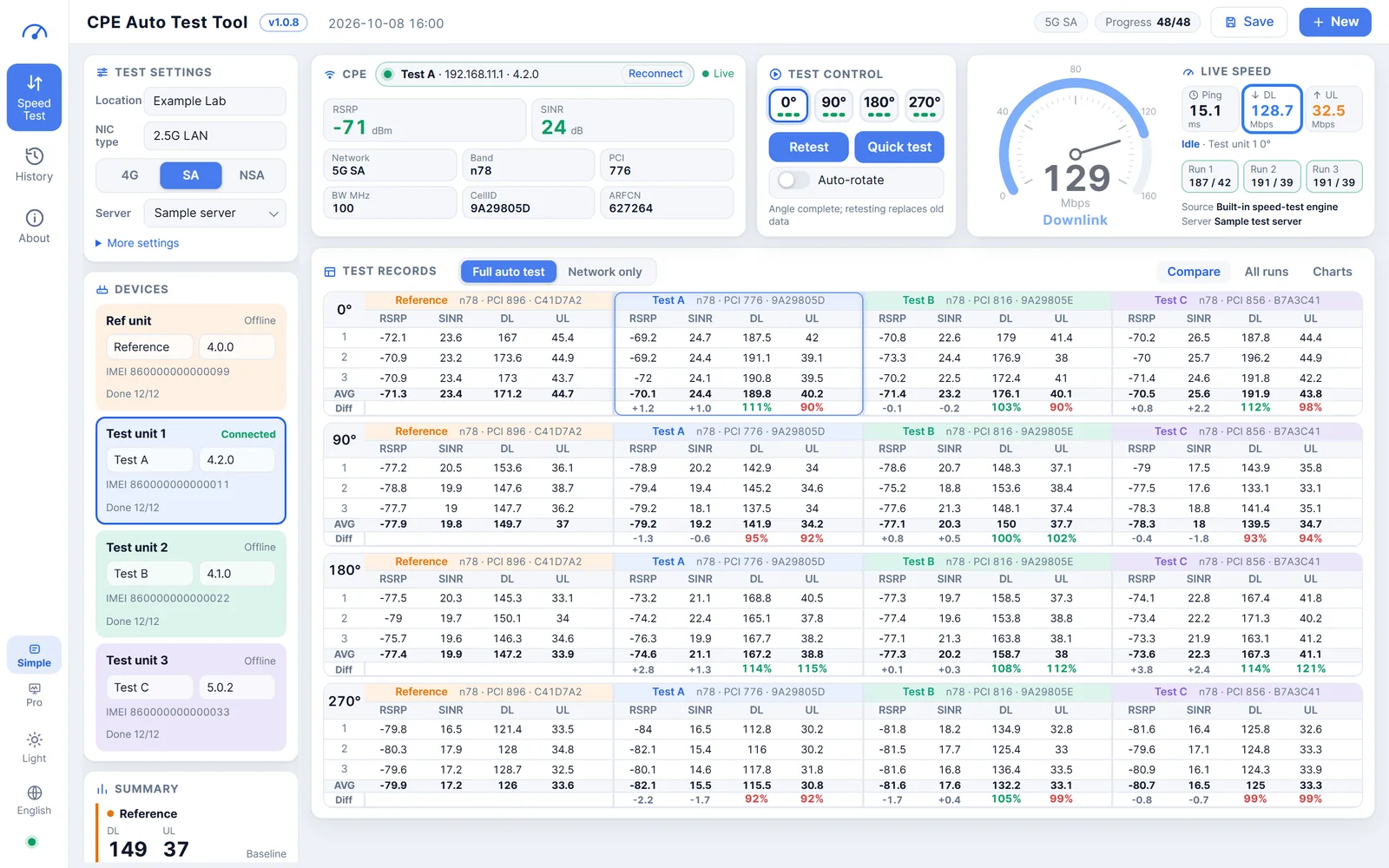
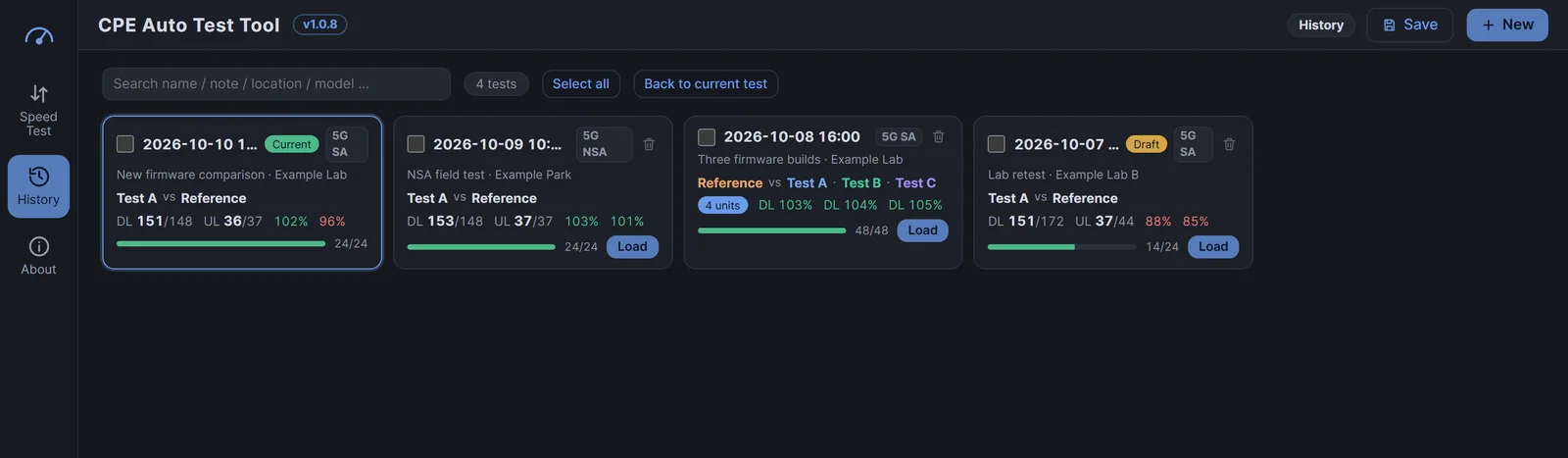
History: search, reopen to continue, restore a save point, or tick several to merge into one export.
CPE Auto Test Tool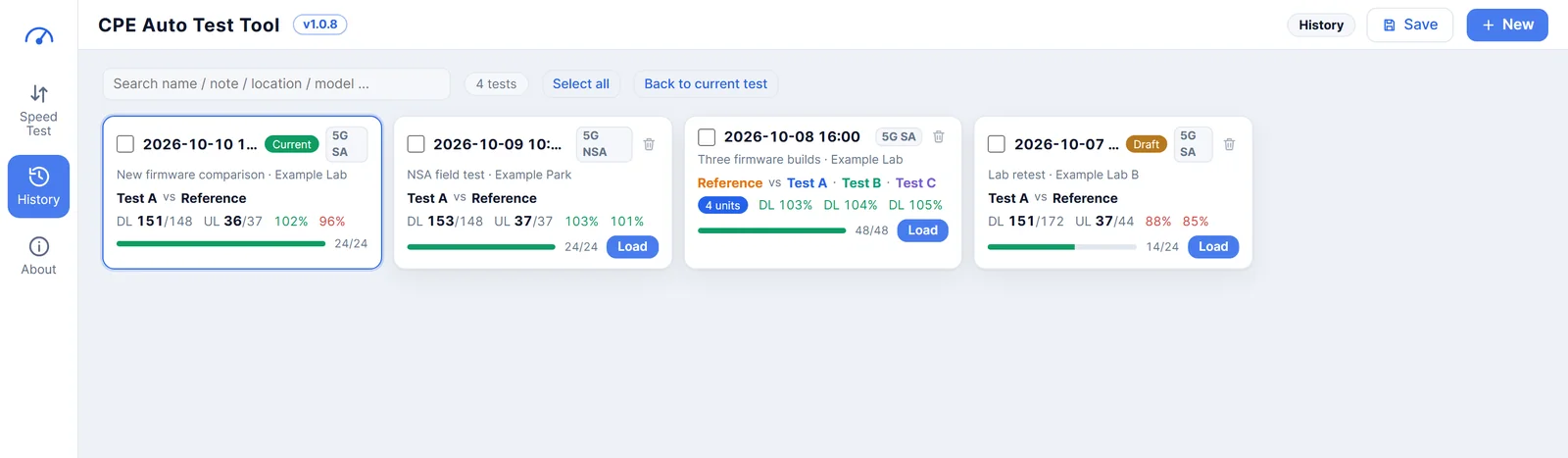
Install, plug in, test
The full walkthrough is in the user manual — this is the short path.
Install & activate
Run the installer — no administrator rights needed. On first launch accept the terms, then activate with a license code or buy a permanent license right in the app.
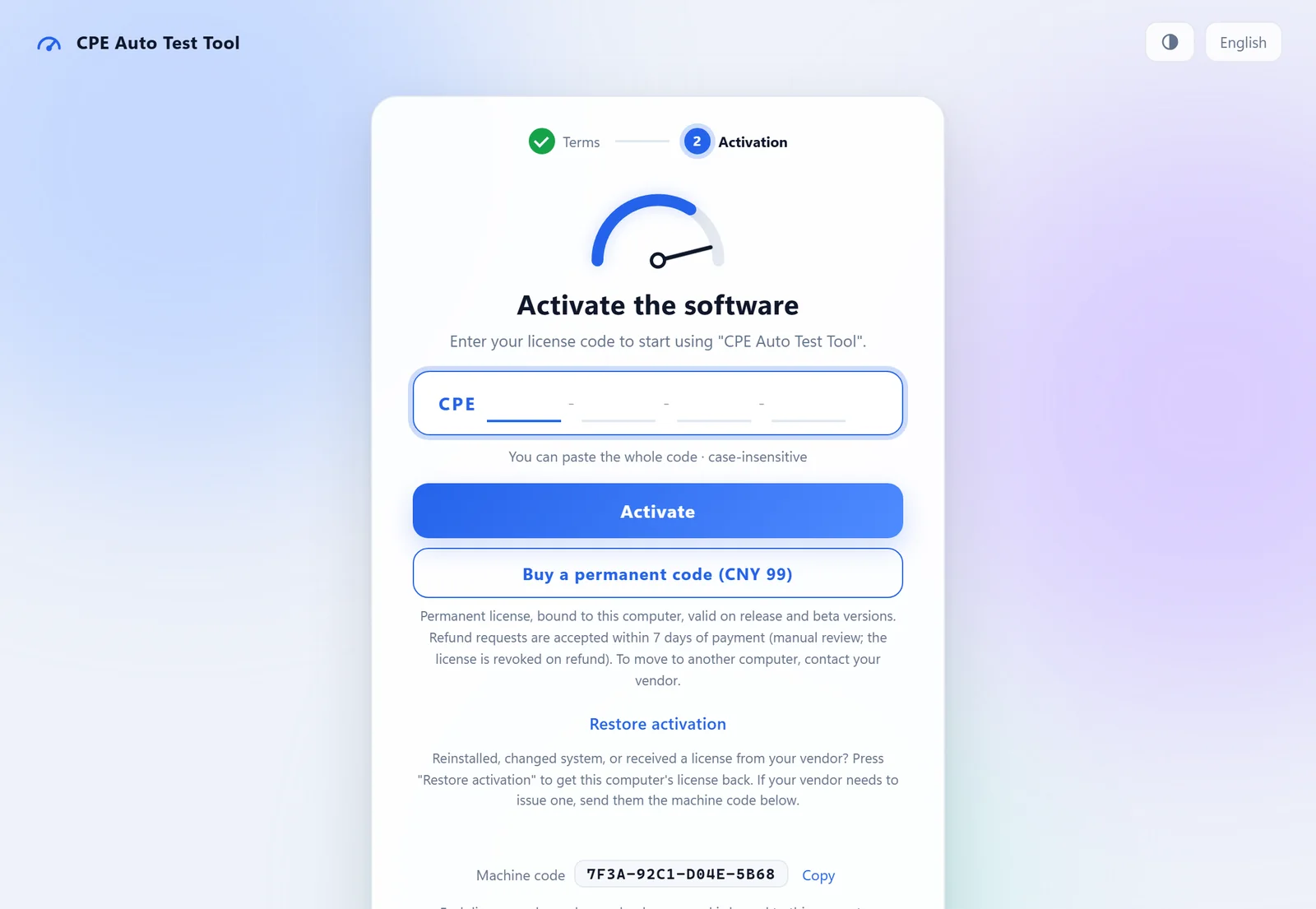
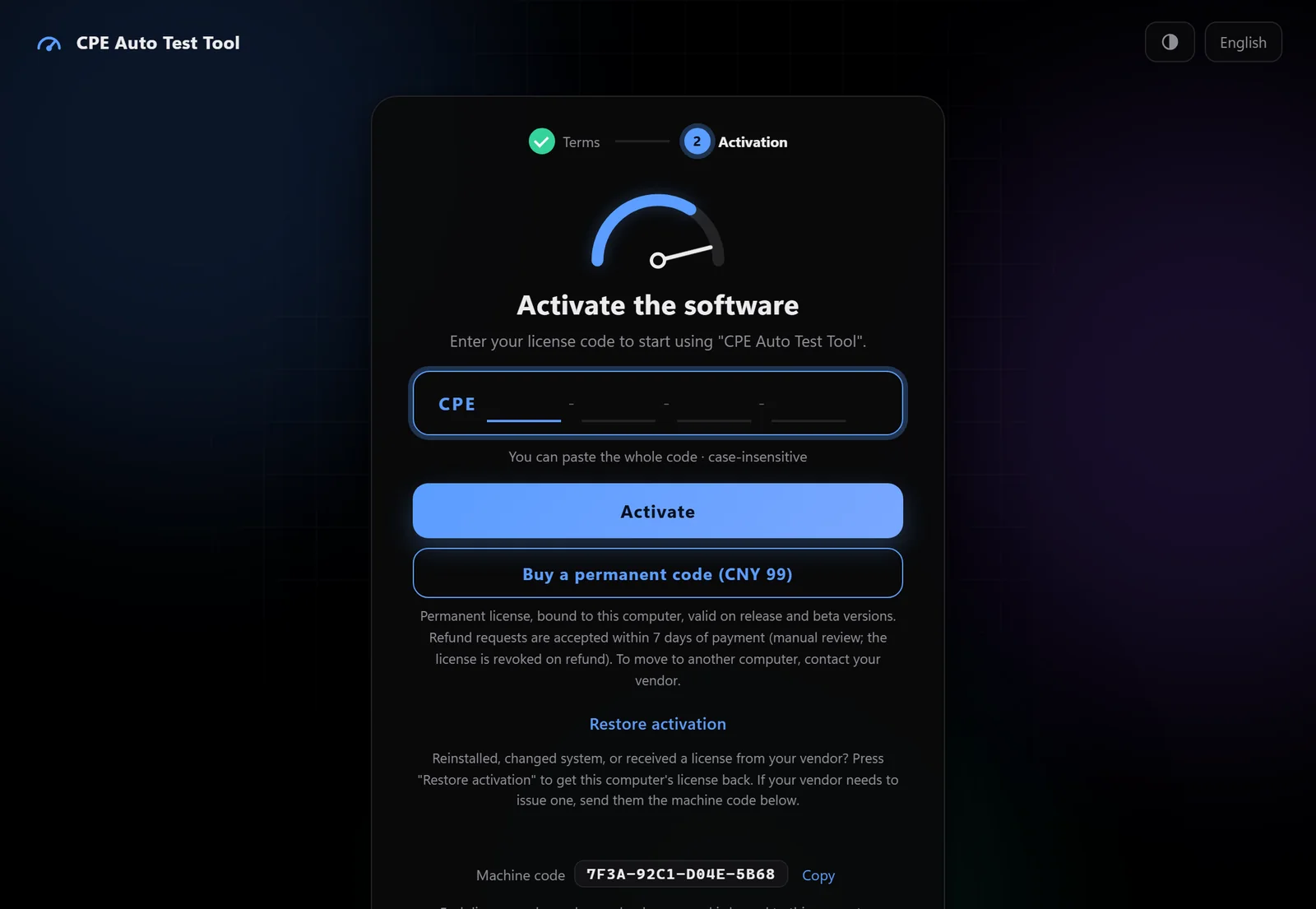
Connect & pick an angle
Plug the CPE into the PC, click Connect and pick an angle. If the device needs a web login, enter it once — it is remembered on this PC.
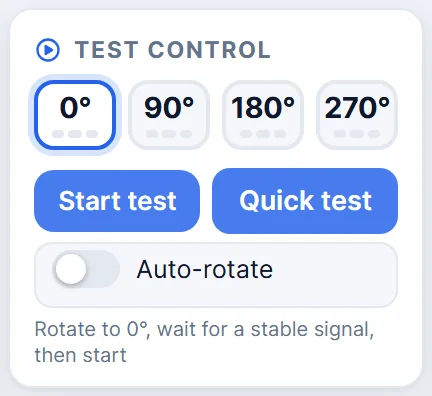
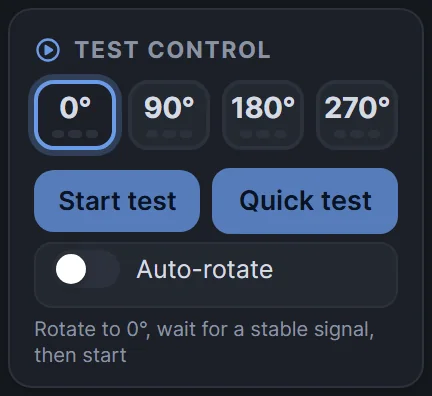
Test, compare, report
Start the test (auto-rotate runs all four angles in one go), repeat with the reference unit, then click Generate report.
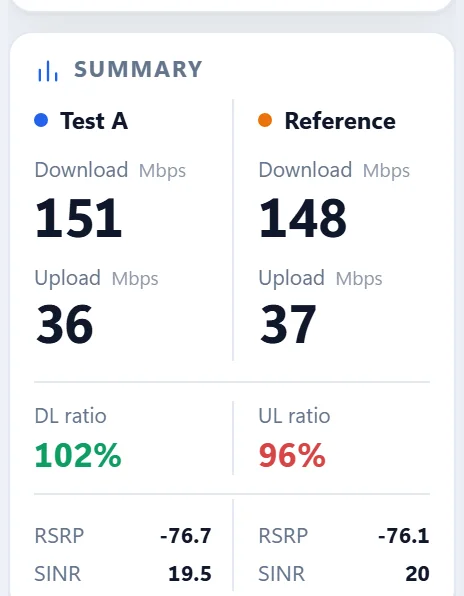
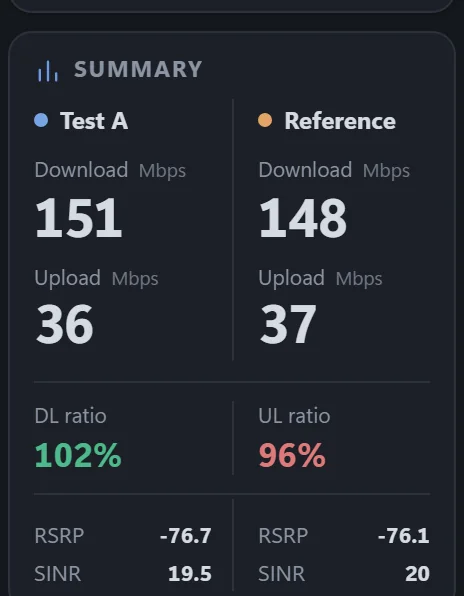
Rotate the unit and test each angle to see antenna directionality
A CPE doesn't perform the same in every direction. The software records each angle in turn and alerts you to rotate the unit when one is done.
- A small bar under each angle button shows how many runs are done; runs per angle are adjustable from 1 to 10
- Turn on auto-rotate: after each angle, a voice and tone alert and a countdown tell you to turn the unit to the next angle
- During the countdown you can start immediately or cancel and take over manually
- After an angle is complete, the cursor jumps back to the first unfinished angle
A comparison report you can hand over right after testing
No more spreadsheet tidying. The report holds both units' signal and speed values, AVG and ratios, plus charts.
- Excel with charts (SA / NSA automatically pick the matching sheet)
- PDF (one page), easy to send to colleagues or customers
- Detailed report: Band, PCI, cell, server and ping for every run
- One sheet per test unit plus a summary sheet when several units are tested
- Tick several records in History and export one merged summary
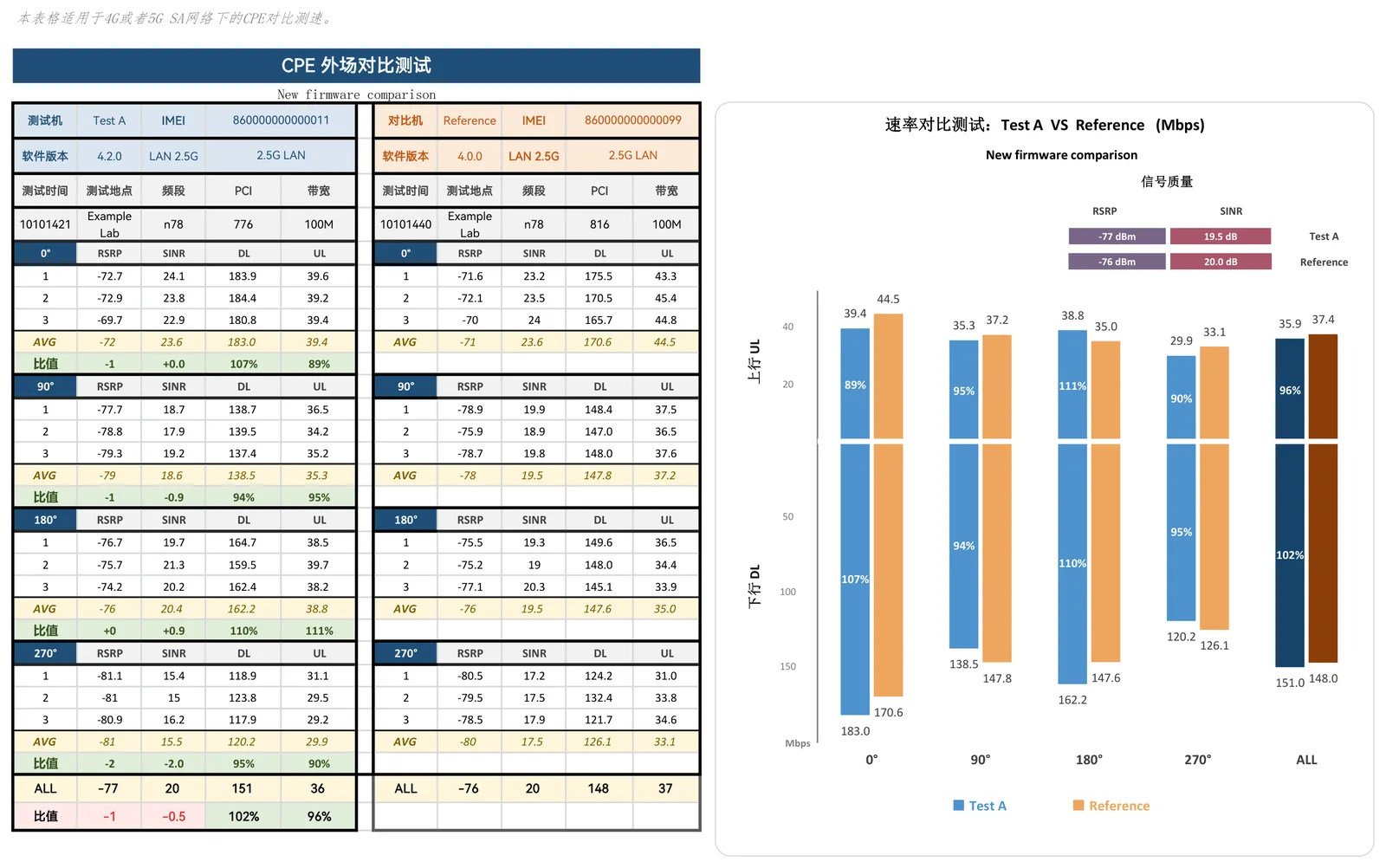
Sample PDF report (sample data)
Works with 4G / 5G CPEs from mainstream brands — and growing
The software reads signal values from the device's admin web pages — read-only, no settings are changed.
Recognised on connect
The device is identified automatically and its signal and cell info are read — no picking a brand or model by hand.
Several login styles
Account + password, password-only and numeric-command devices are all handled; if a login is needed, enter it once and it stays on this PC.
New models, quickly
Meet a device the software doesn't know yet? Use New-device collection to hand its information to the developer so a later version can support it.
- ConnectPlug the unknown device in and click Connect
- Enter its web loginThe software says it can't identify the device — enter its web login
- Read-only collectionIt only reads device information — no settings changed, no reboot
- Export encrypted logExport a diagnostic log (no passwords or license codes inside)
- Send to the developerUpload it from inside the app; once adapted, a new version supports the device
Your test data stays on your PC
The software goes online only when needed, and never uploads anything behind your back.
Local by default
Test data, device info, history and reports are stored only on your computer and are not uploaded to the license server.
Read-only on devices
The software only reads network parameters. It does not change device configuration or reboot devices.
Encrypted logs, your call
Diagnostic logs are encrypted and contain no license codes or passwords. They leave your PC only if you export and upload them yourself.
What you may want to know first
Does the software need a license?
Yes. After accepting the terms on first launch, activate with a license code. Each code can be activated once and is bound to the computer it was activated on; you don't need to activate again on later launches.
How do I get a license? Can I just buy one?
Two ways:
- Buy it in the app: from v1.0.8 the activation screen offers “Buy a permanent code (CNY 99)”; pay with Alipay and the software activates automatically. See Pricing & licensing.
- Contact us: for trials, bulk or business licenses use the Contact & licensing page.
Can I get a refund?
Yes. A permanent device license can be refunded on request within 7 days of payment, after manual review; the license is revoked on refund. Email us with the time of purchase and the “machine code” shown on the software's activation screen. See Pricing & licensing.
Which devices are supported?
4G / 5G CPEs from several mainstream brands are supported (account + password, password-only and numeric-command logins), and more models are being added.
If the software doesn't recognise a device, use New-device collection: enter the device's web login, the software collects device information read-only, export the encrypted log and send it to the developer — a later version can then support it.
System requirements?
Windows: Windows 10 / 11 (64-bit). The interface opens in its own window using the built-in Microsoft Edge (or Chrome if Edge is missing). Installation does not need administrator rights; the program is installed in your user folder.
macOS: macOS 11 or later, on Intel and Apple silicon. The interface opens in its own window using Google Chrome (Microsoft Edge or Brave also work), so one of them must be installed; if none is found the default browser is used.
Speed tests and license verification need internet access on both platforms.
Give your field-test time back to what matters
Download the software and activate it with a license code — or buy a permanent license right in the app.