
Features in detail
Every feature below comes from the real software; the data in screenshots is sample data.
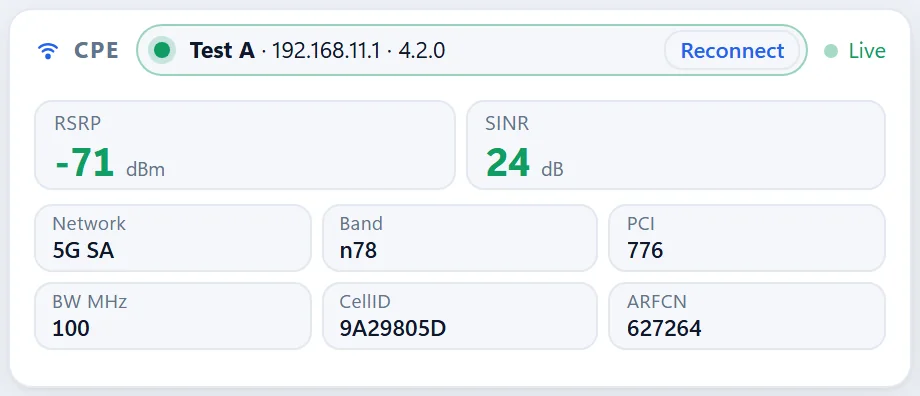
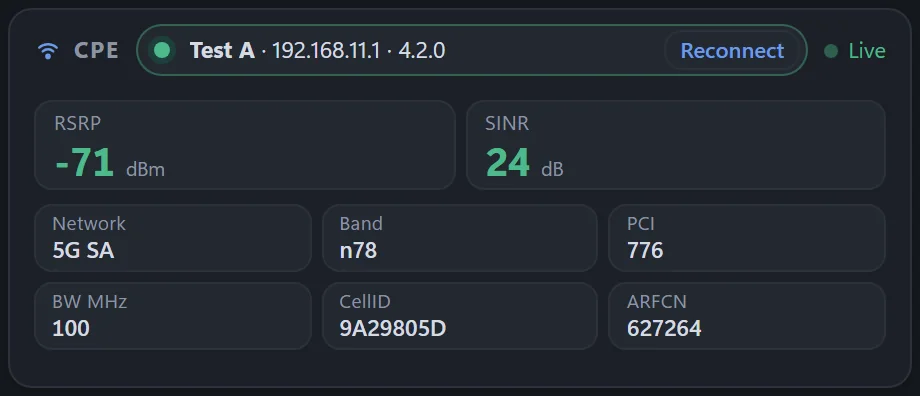
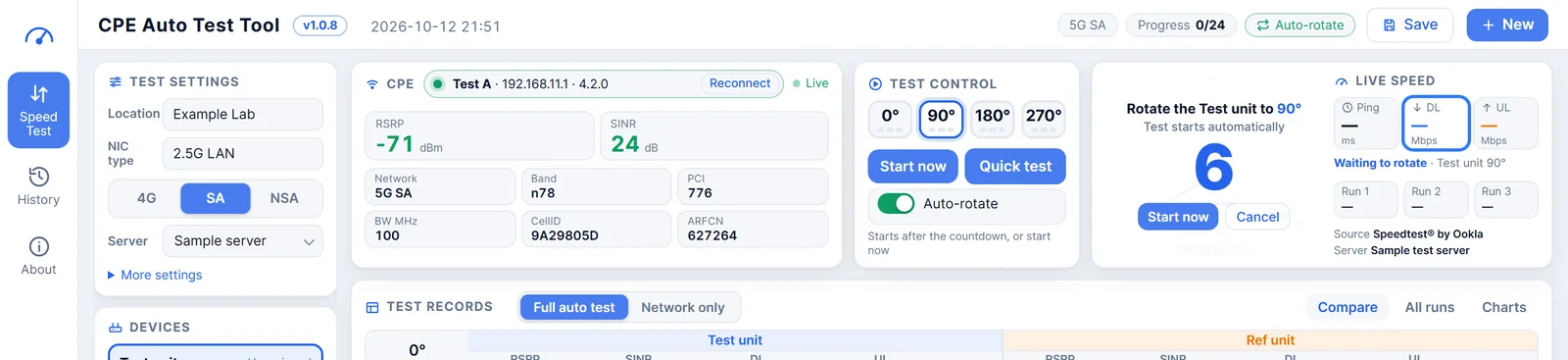
Plug in, and the readings appear
The software finds the device on the LAN, identifies the vendor and reads the network parameters from its web pages.
- Live RSRP, SINR, Band, PCI, CellID, ARFCN and more
- 4G / SA / NSA modes; NSA records RSRP, SINR, Band and PCI for 4G and 5G separately
- A yellow notice appears when the device's actual network differs from the mode you selected
- Detects how the PC is connected to the device (adapter type) automatically
- For devices needing a web login, enter it once — it is kept on this PC
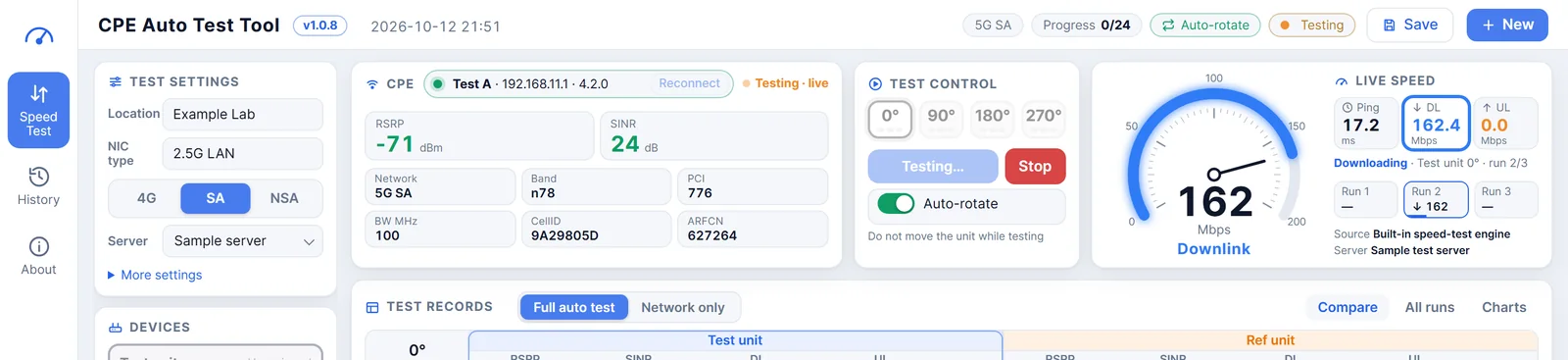
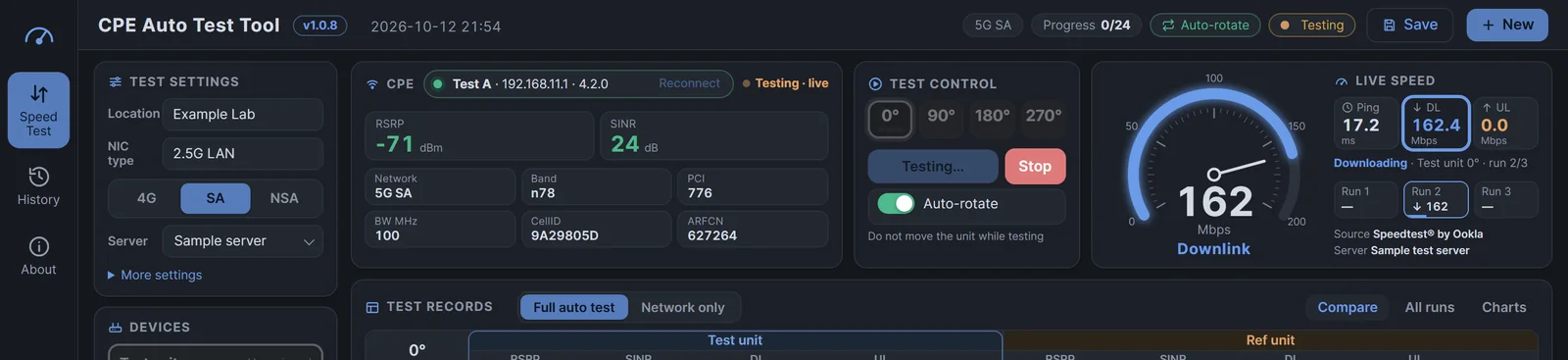
Test angle by angle, with rotate alerts
Speed tests run on the software's built-in speed-test engine with a live dial. How many runs per angle and how long the rotate countdown lasts are up to you.
- Download, upload and latency live; a run takes about a minute
- Picks the lowest-latency server automatically and keeps using it for later runs, including the reference unit
- Auto-rotate: voice and tone alert after each angle, next angle starts when the countdown ends (voice / double beep / silent)
- A clear notice appears if the test service rate-limits you or the network is down — no endless chain of failures
- Quick test: a single run that is not recorded in the current test — handy for a quick look at the speed
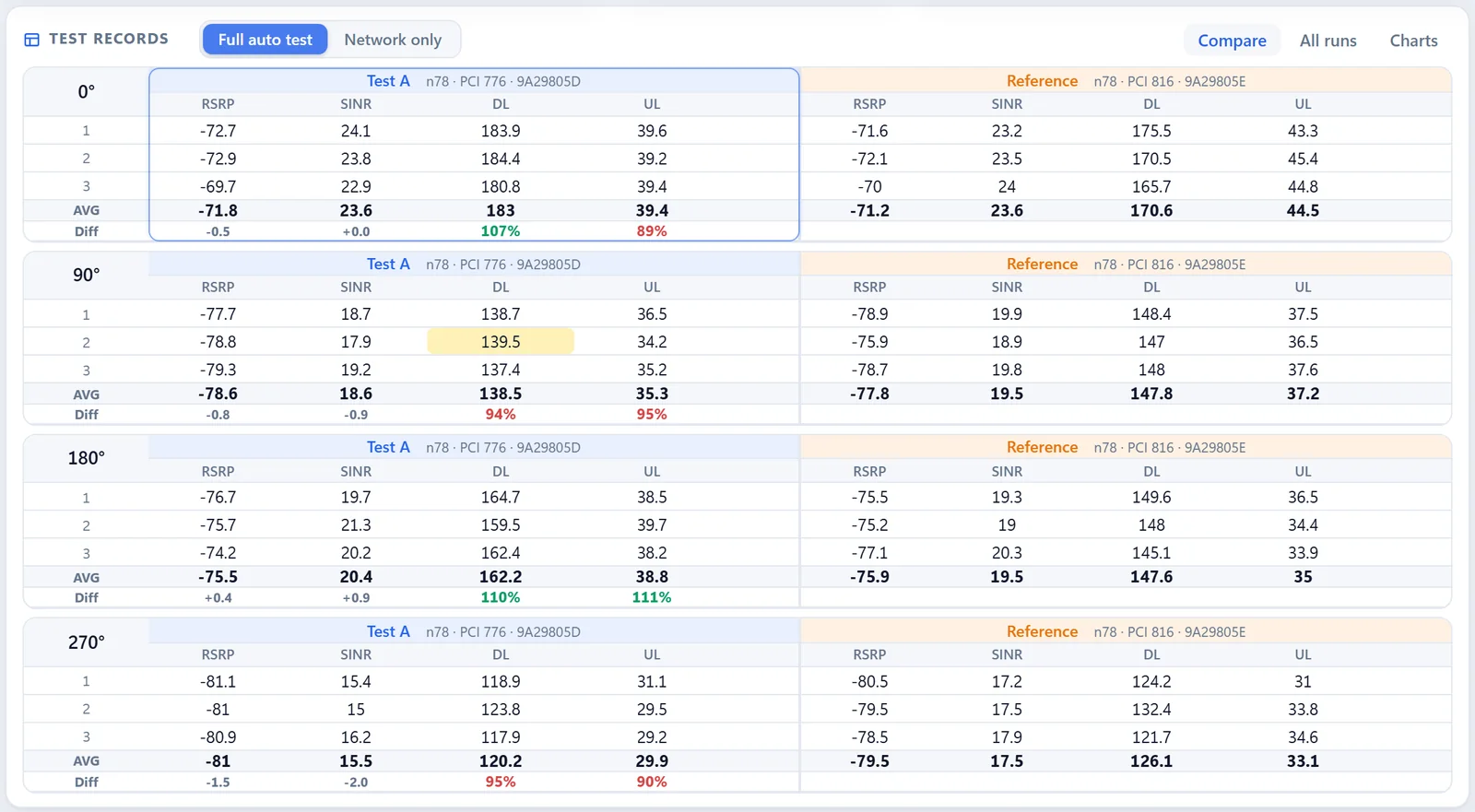
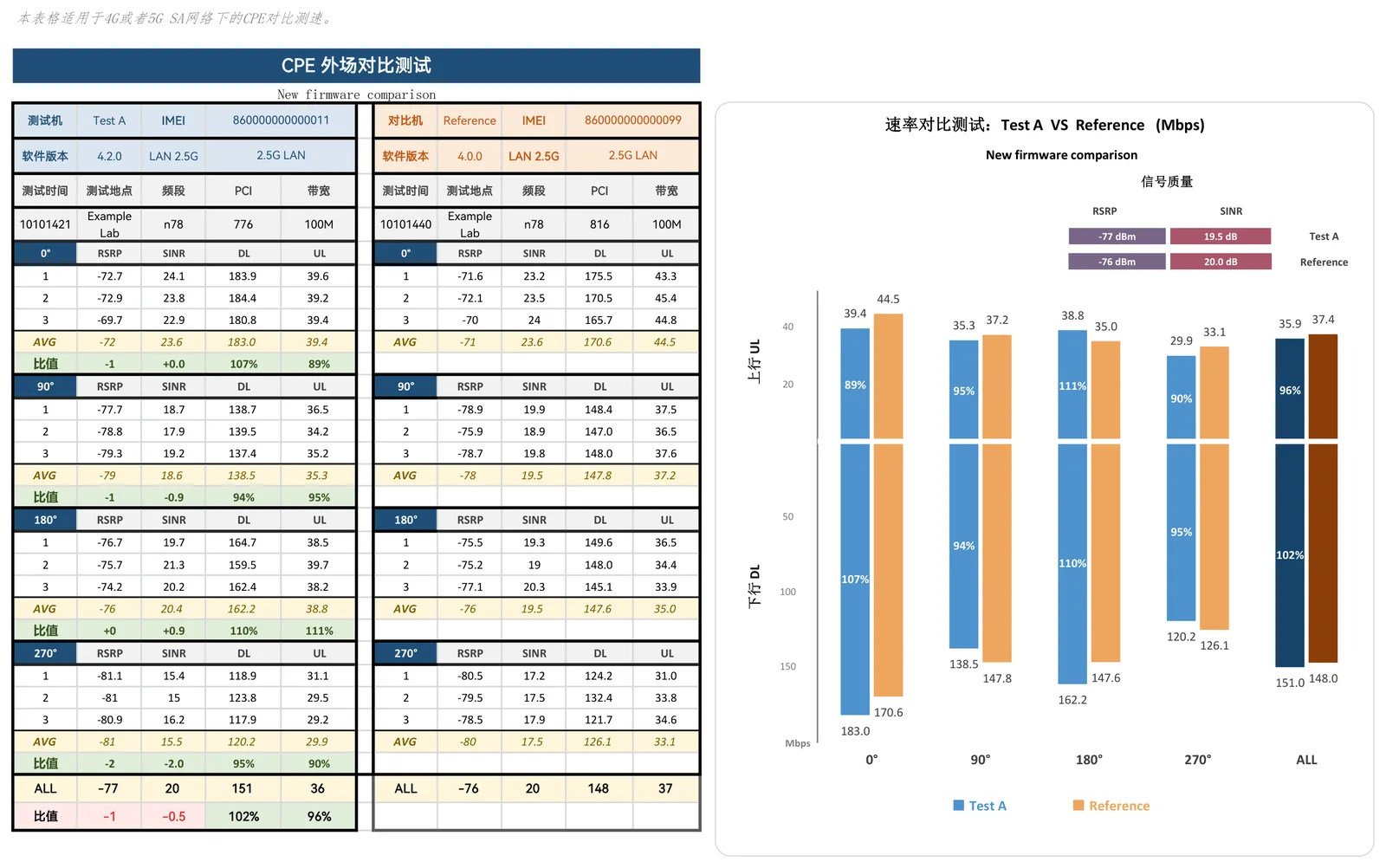
Two units side by side — the gap is obvious
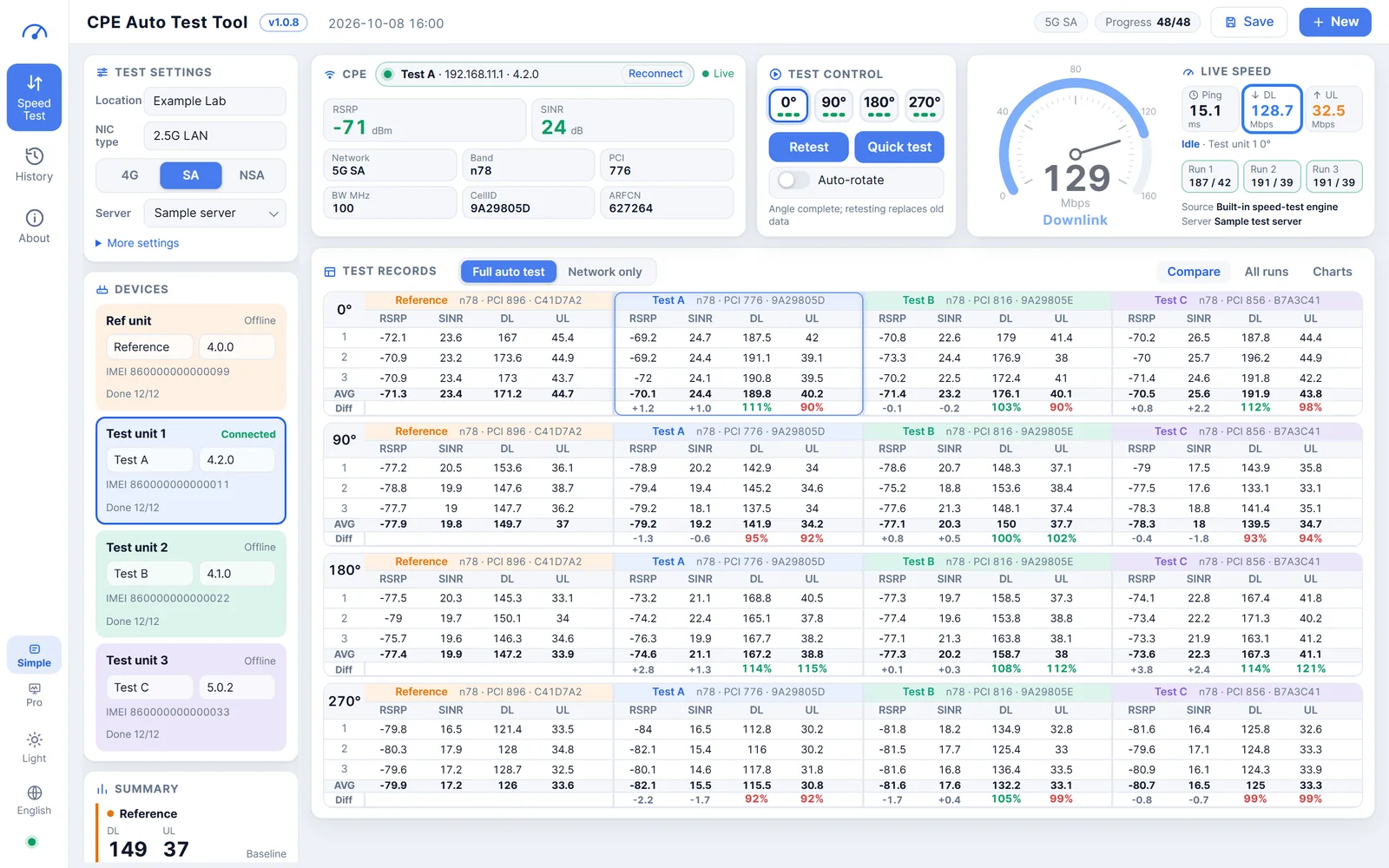
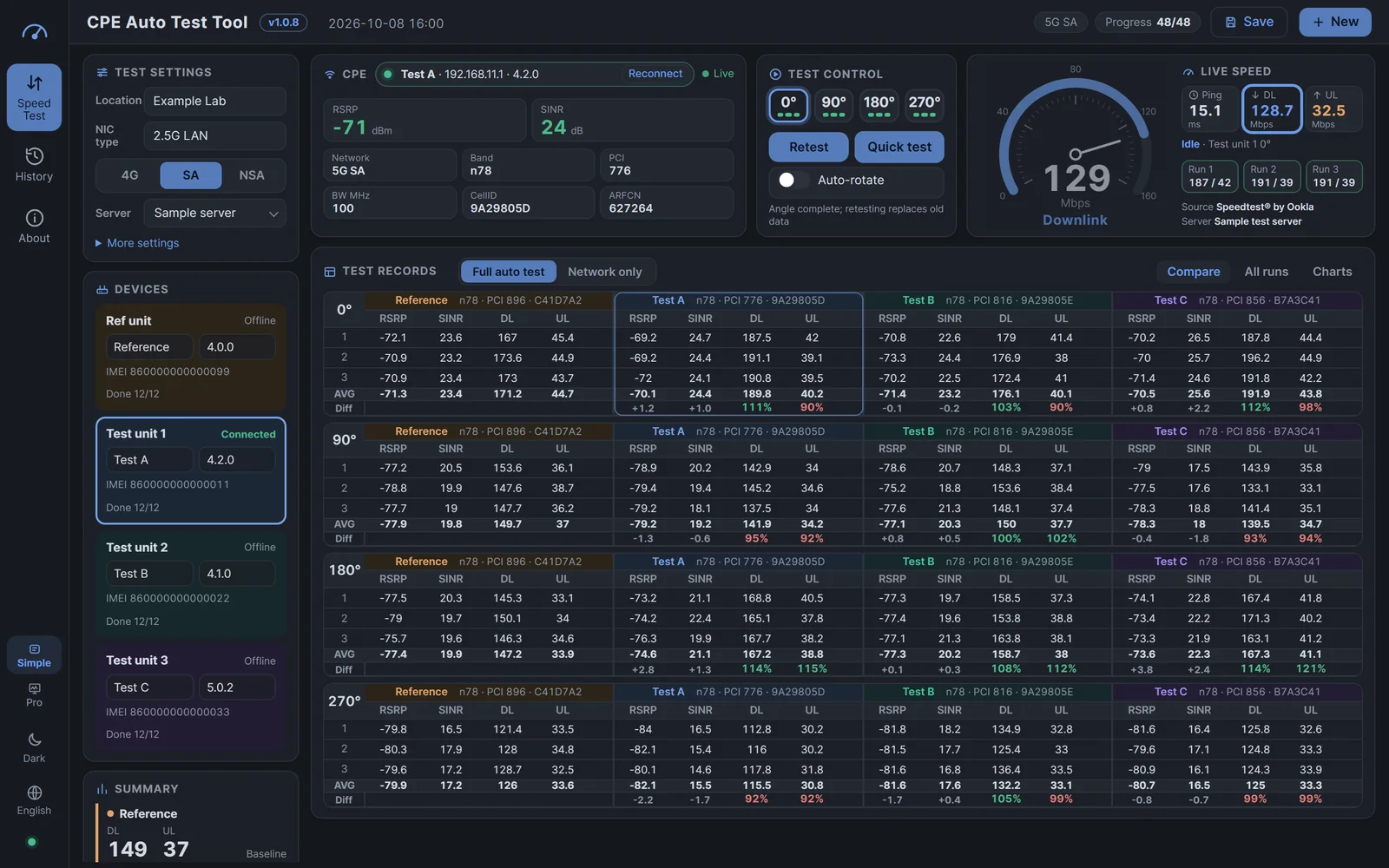
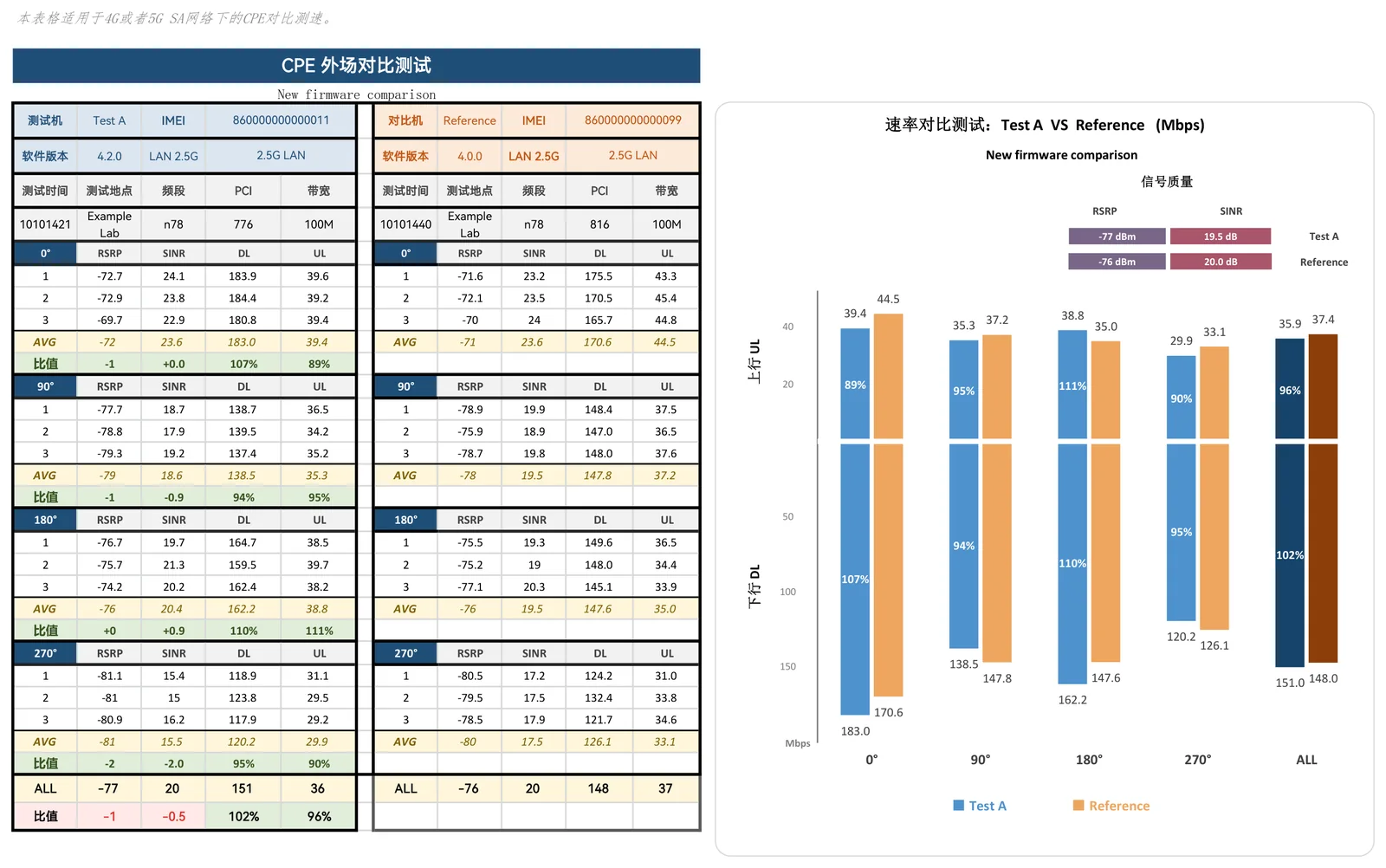
One block per angle: RSRP, SINR, DL and UL for every run, with AVG and ratio underneath.
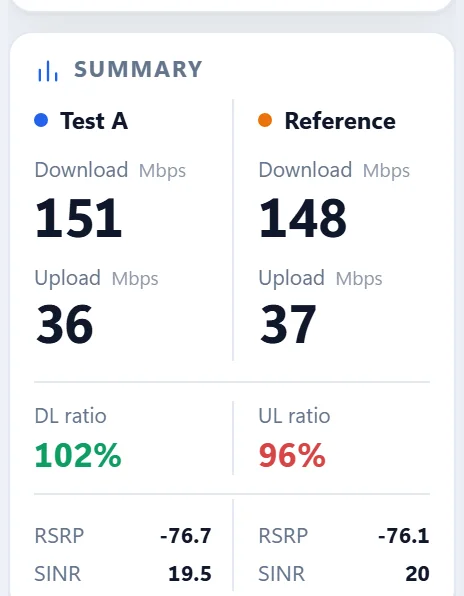
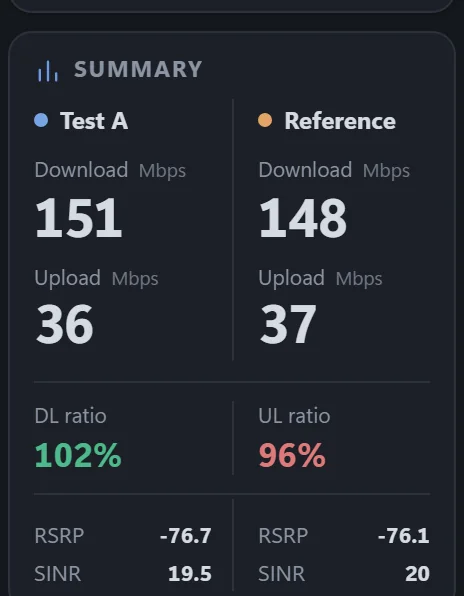
- DL / UL ratio = test ÷ reference: ≥100% green, <100% red; RSRP / SINR show the difference
- Click any value to edit it; yellow marks an edit and hovering shows the original
- Retest or clear any single run; drag data from one angle to another to swap them
- The Summary panel shows overall download / upload ratios and average RSRP / SINR
- Chart view compares average download and upload per angle
Test several units in one session
One reference unit plus up to four test units, all compared side by side.
- One report sheet per test unit plus a summary sheet
- Model, firmware and IMEI are filled into each unit's card automatically
- Tick several records in History and export one merged summary
When speed comes from elsewhere, just record the network
Sometimes speed is measured with another tool, but the cell information still has to be recorded accurately.
- With network-only on, Start is disabled and the data source reads “CPE web readings (network only)”
- Click Write on a row and the current RSRP, SINR, Band, PCI and cell info are stored in it
- Type DL / UL by hand; AVG, ratios, summary, charts and reports are calculated as usual
- The detailed report's Source column marks “network only” or “manual”; both modes can be mixed in one test
Two ways in one test
Local speed test: the software measures and records the network in one click. Network-only: speed comes from elsewhere and the software just records the cell info accurately. Flip the switch any time — existing data is kept.
Reports in one click, history at hand
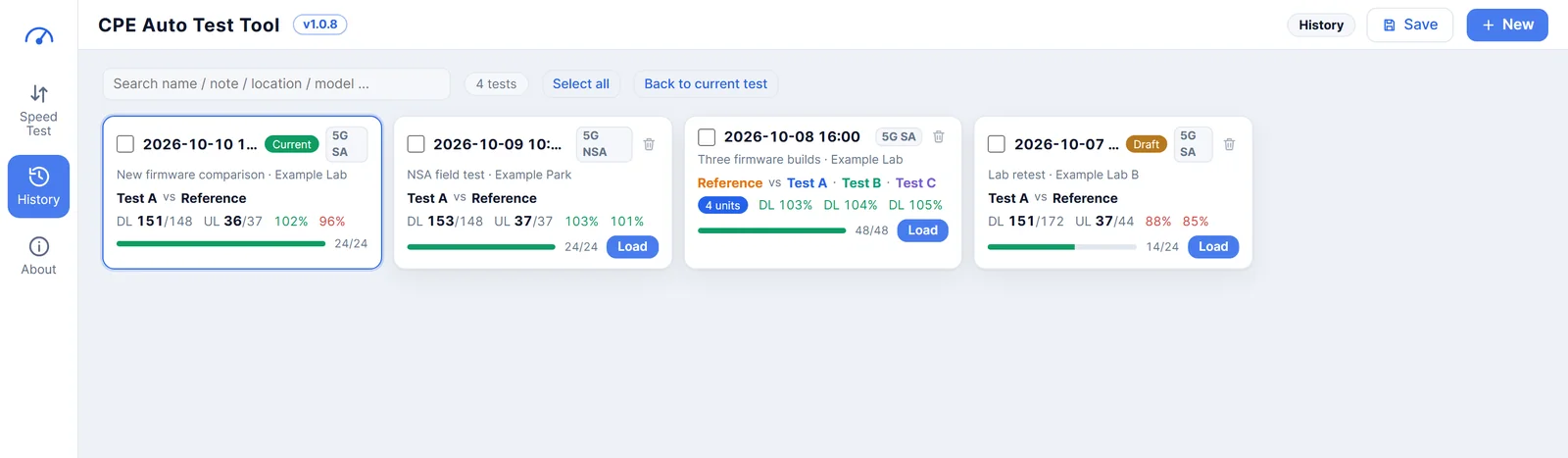
Every test is saved automatically; save a restore point and you can return to that moment.
- Excel (with charts) + one-page PDF; optionally a detailed report as well
- A new test inherits the last settings: place, server, angles, runs and so on
- History: search, reopen to continue, restore a save point, delete in bulk
- Blank tests with no data are not saved
Detail when you want it, calm when you don't
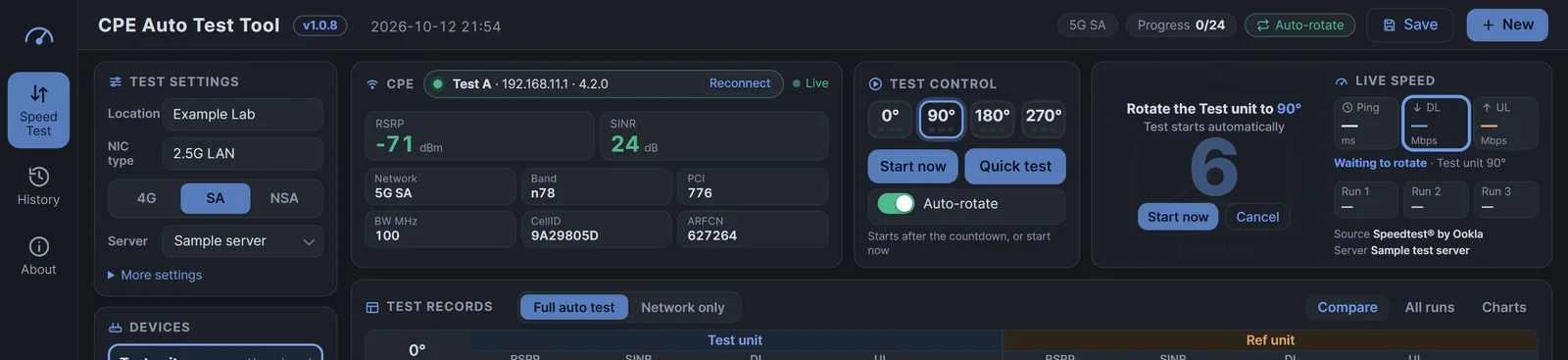
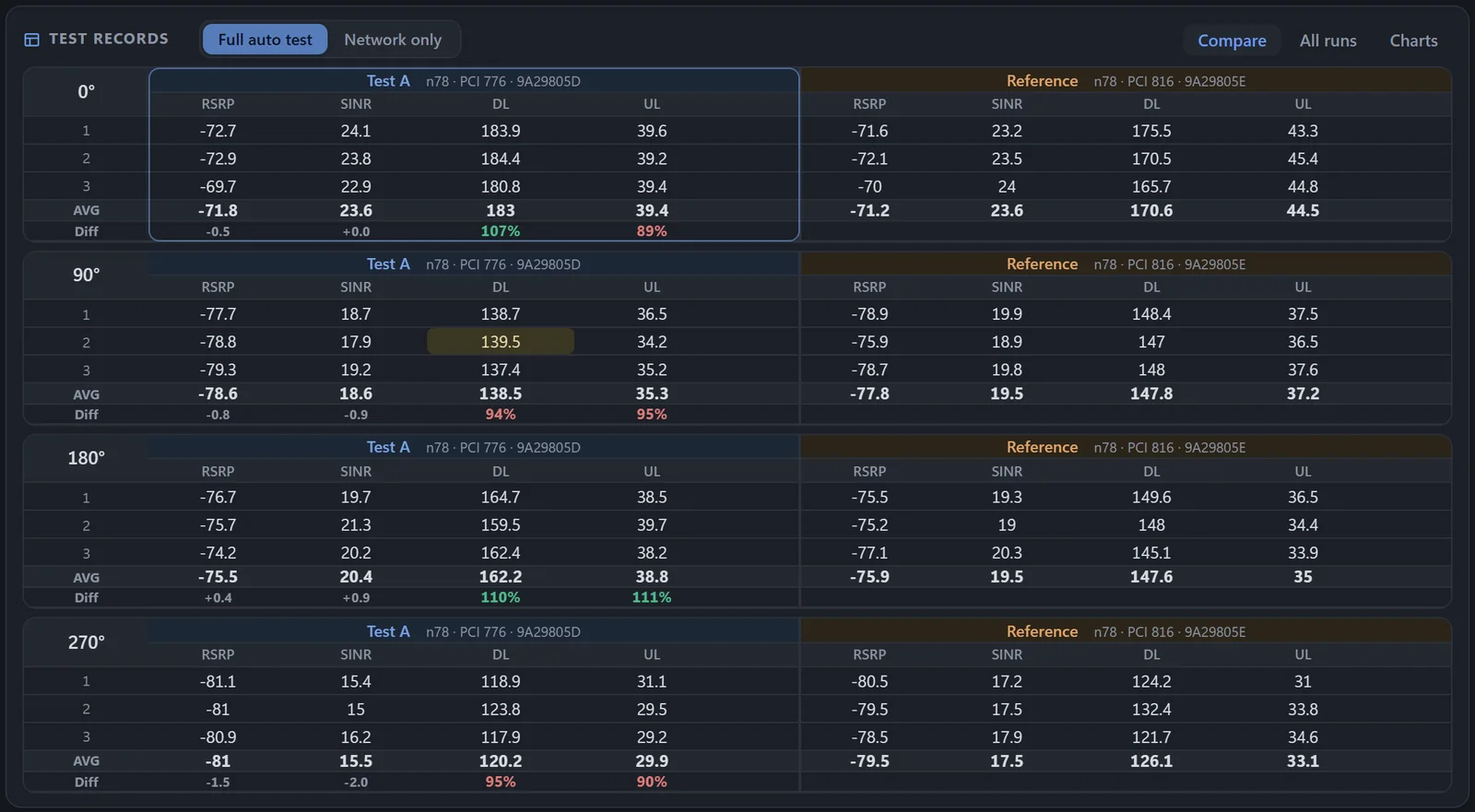
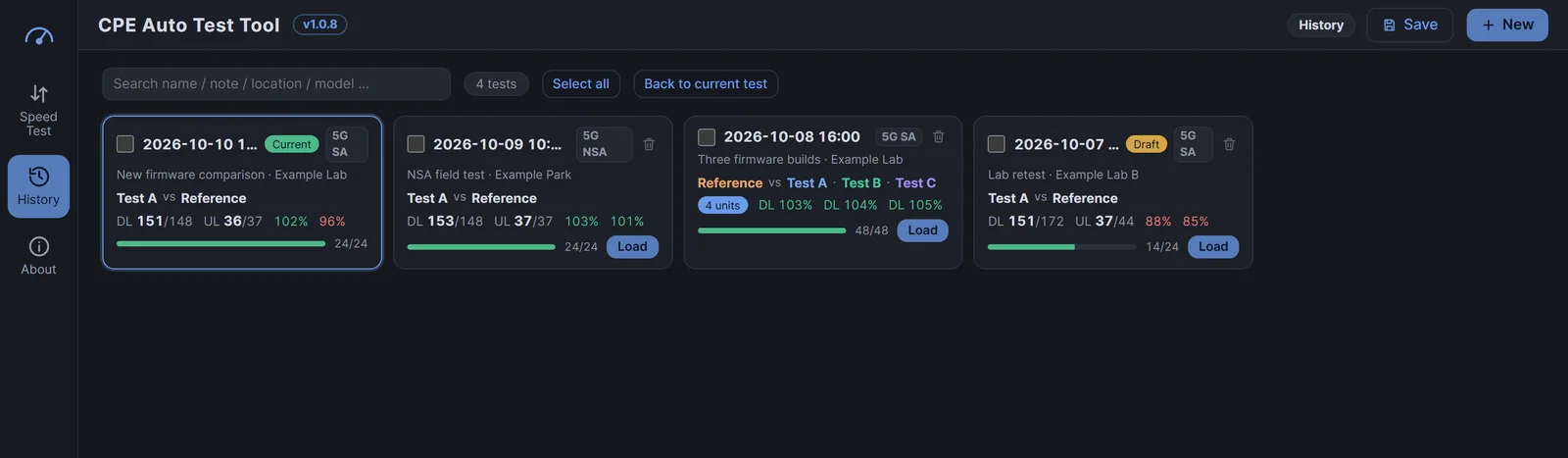
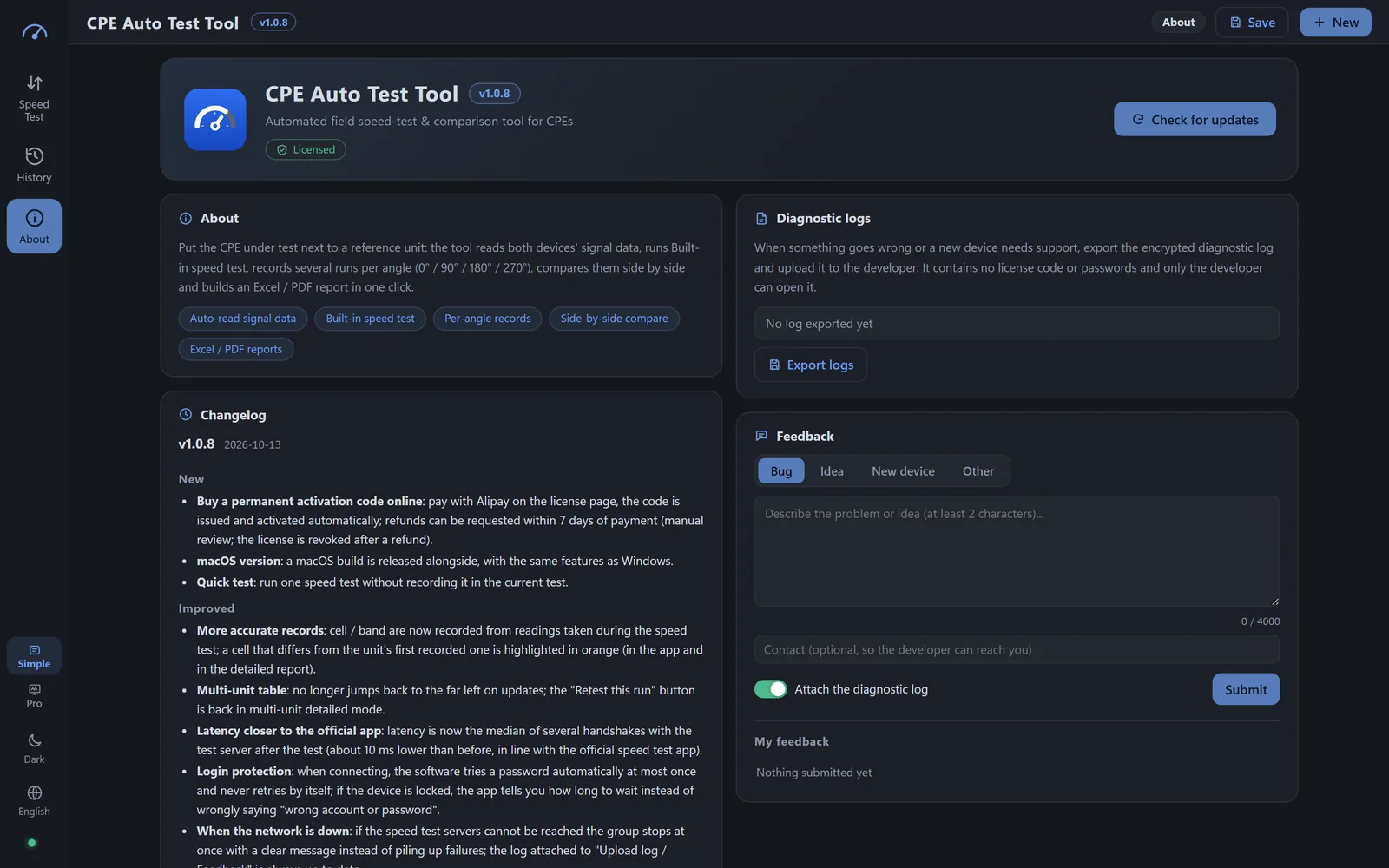
Switch between two layouts in one click; light / dark themes and Chinese / English UI can be changed any time.
- Pro mode: per-run Band, PCI, CellID, server and ping, plus a status bar with device, server and link type
- Global undo / redo (Ctrl+Z / Ctrl+Y, ⌘Z / ⌘Y on Mac); Ctrl+S (⌘S on Mac) saves a restore point
- An optional progress bar shows how far the test unit and reference unit have got
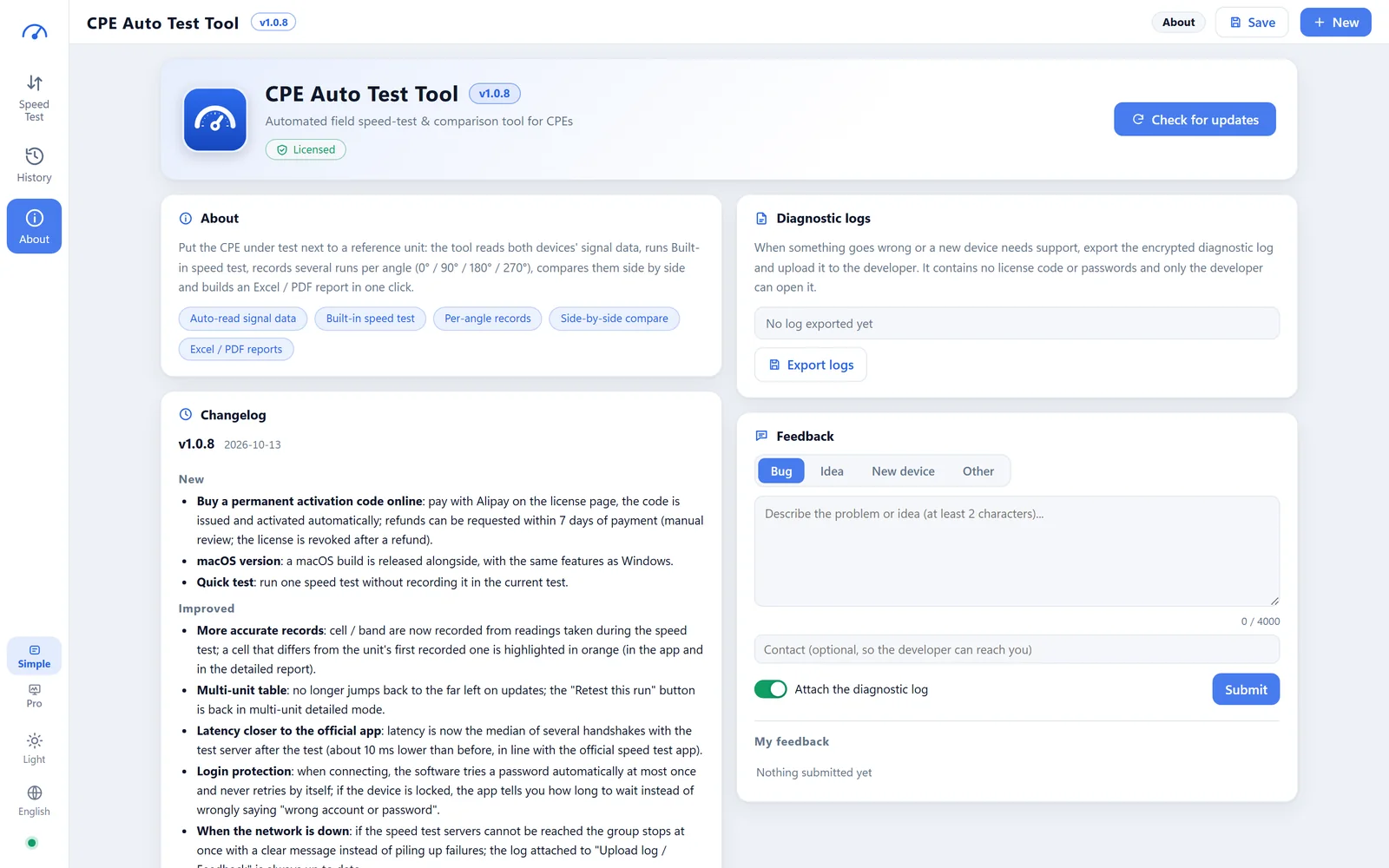
- About page: version and changelog, check for updates, export encrypted diagnostic logs and send feedback from inside the app (from v1.0.6)
Want the full walkthrough?
The user manual covers installing, activating, testing, reports and common questions, step by step.